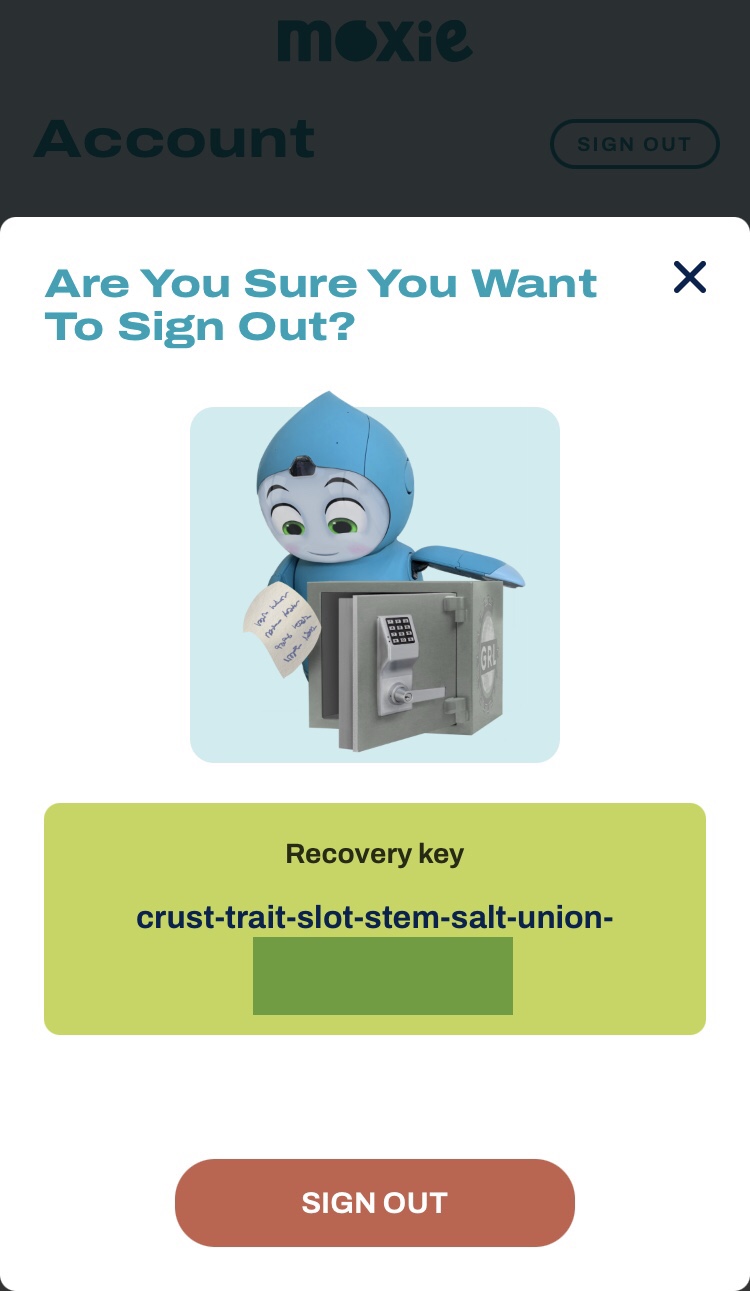
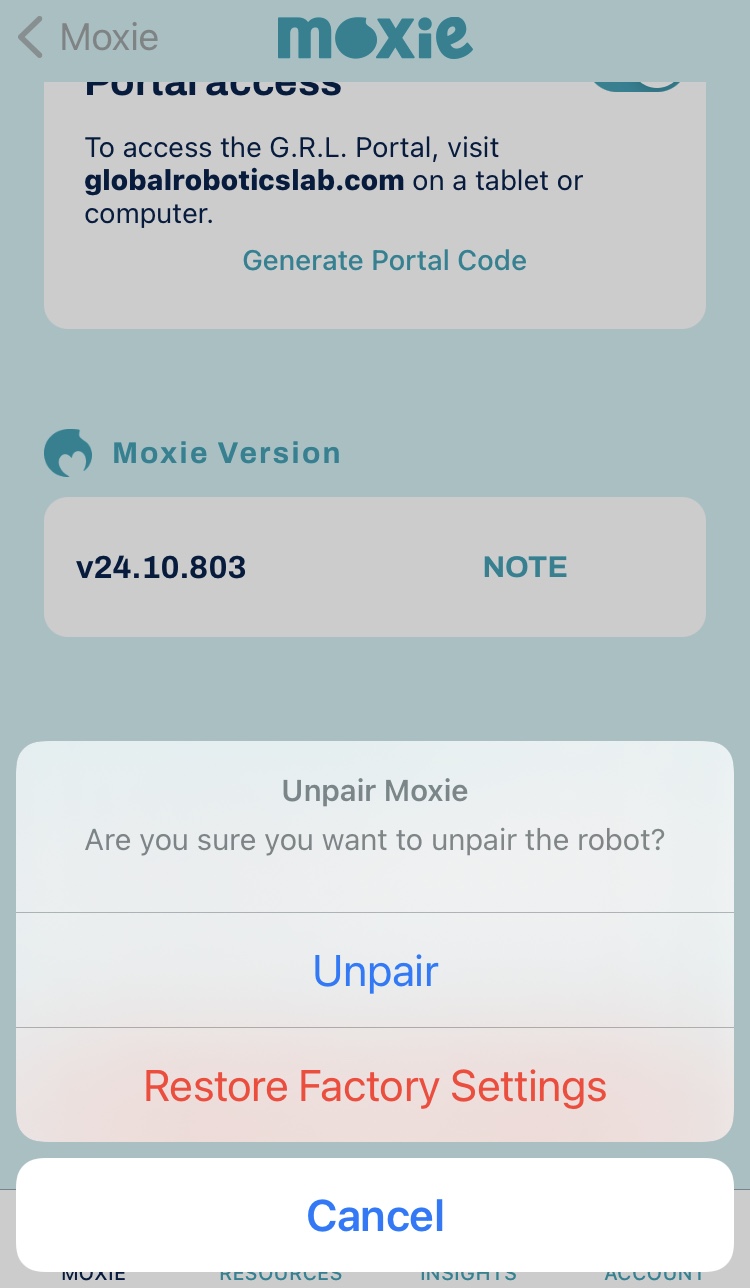
Setting up OpenMoxie on a MacBook Air M4
1. Download the OpenMoxie setup guide found here:
https://drive.google.com/file/d/1j2dHFS1kjvQgsZXAPOgw_SllETE0KJmO/view
2. Once on Docker.com click “Choose plan” and select Personal for $0. Don’t click “Download Docker Desktop” as for me it caused an error with creating an account later. Create the account first, then download Docker. Ensure you create a personal account.
3. Verify your Docker account email.
4. Once logged into your Docker account under Docker products> Docker Desktop select Go to download.
5. Download the version applicable for your device. I downloaded Docker Desktop for Mac with Apple silicon. This took about ten minutes to download for me. You may get prompted by Apple to download other apps such as Rosetta during this time. But as I uninstalled Docker a few times I didn’t always get prompted to download other apps.
6. Once downloaded find the Docker icon by going to Finder on the app bar and go to Downloads. Double click on the Docker download and a pop up will appear asking you to drop and drag Docker to Applications. Click and hold down on Docker and drag it across to Applications.
7. Go to Launchpad and scroll right to find the Docker icon. Click on the Docker icon and you will get a pop up asking if you are sure you want to open it. Click Open.
8. Click Sign In on the Docker Desktop pop up that appears.
9. Create a folder and name it OpenMoxie.
To create a folder first go to Finder at the bottom and select Desktop. Close. Then select File top left. Go File > New Folder. Rename the blank folder that appears on desktop as “OpenMoxie.”
10. Set up your Safari browser so that files download from Safari go into your OpenMoxie folder.
Open a Safari browser. At the top left go Safari > Settings > General > File download location > Click Downloads > Either Ask for each download or Other> If selecting Other to the left under Earlier select OpenMoxie. File downloads should now automatically go to the OpenMoxie folder.
11. Download docker-compose.yml from the OpenMoxie guide by clicking on the link and selecting the download icon top right. This should download directly into your OpenMoxie folder. Open your OpenMoxie folder to double check it’s there.
12. Right click on the OpenMoxie folder and click New Terminal at Folder. To right click on a MacBook trackpad place two fingers, such as middle and index, and press down while hovering the mouse over the folder.
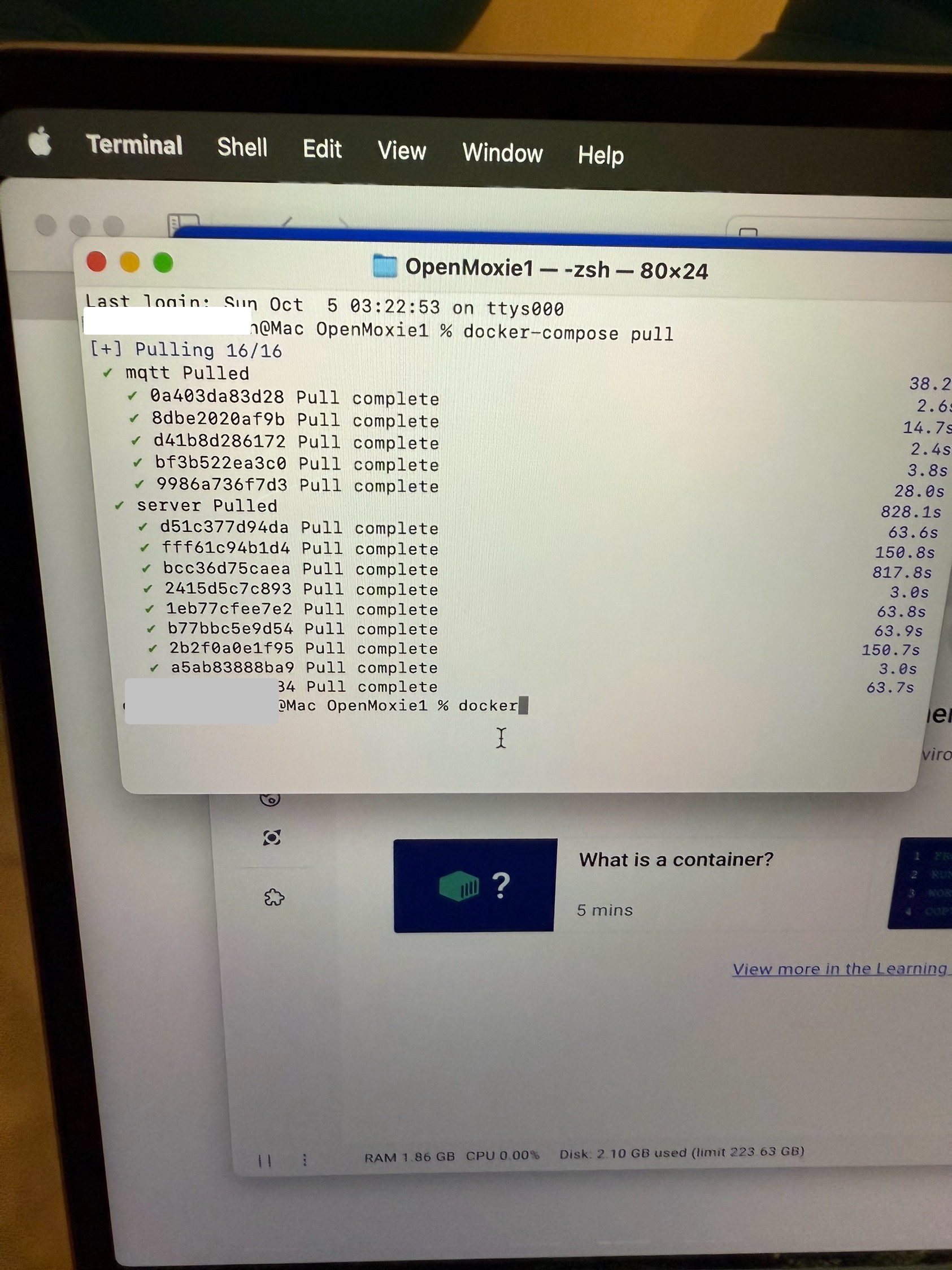
13. In the terminal window that pops up type: docker-compose pull and press return.
The window will be small and white. Just start typing
[Note: I experienced an error the first few times I tried this. I had to click on the Docker icon beside the battery icon and uninstall Docker and download it again. I closed the first terminal window by pressing command and Q at the same time before attempting again.]
14. Wait for all the modules to finish pulling! It can take a good fifteen minutes or more.
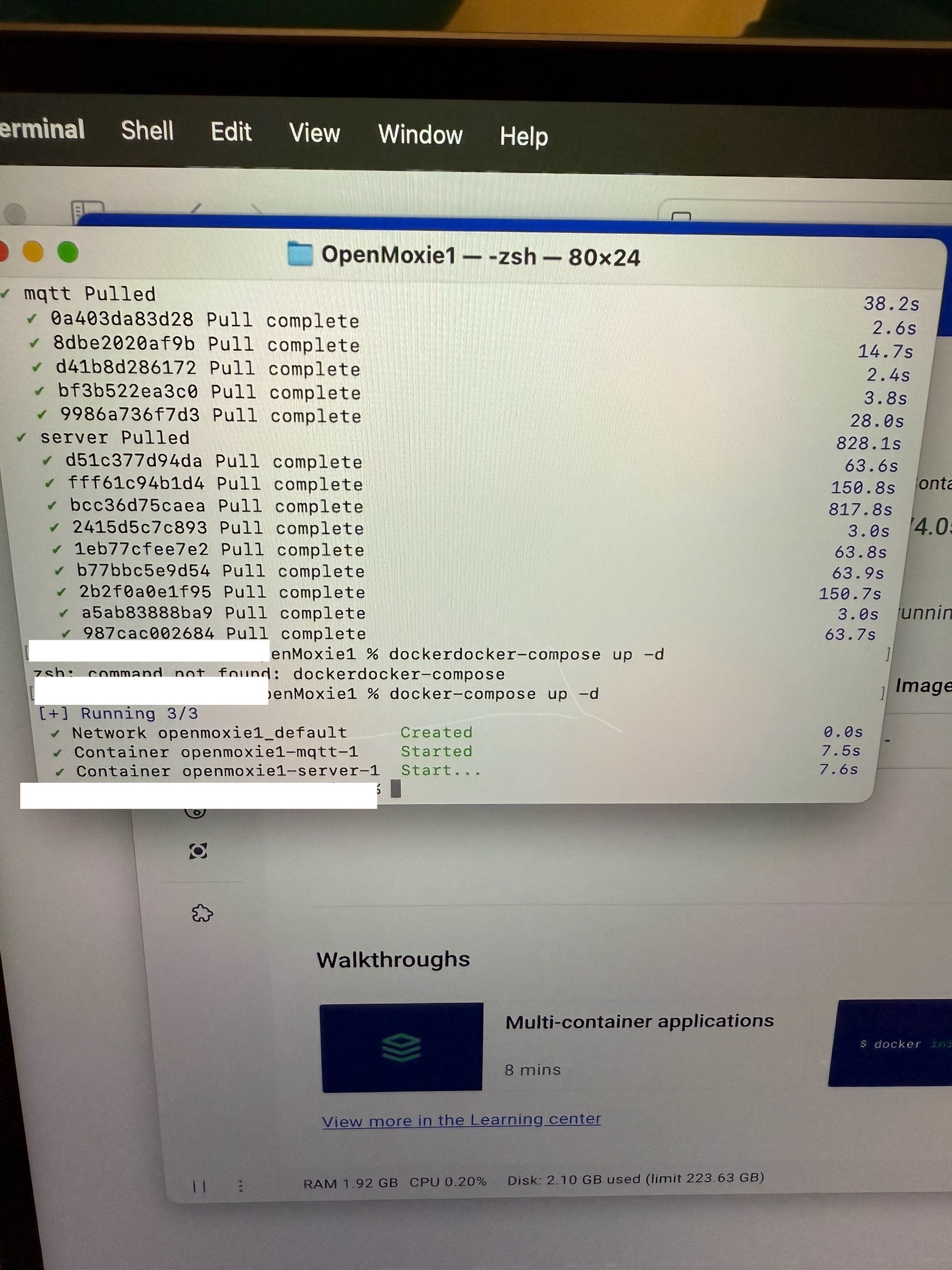
Now type: docker-compose up -d and press return.
15. Click on the localhost link under Running OpenMoxie in the OpenMoxie set up guide.
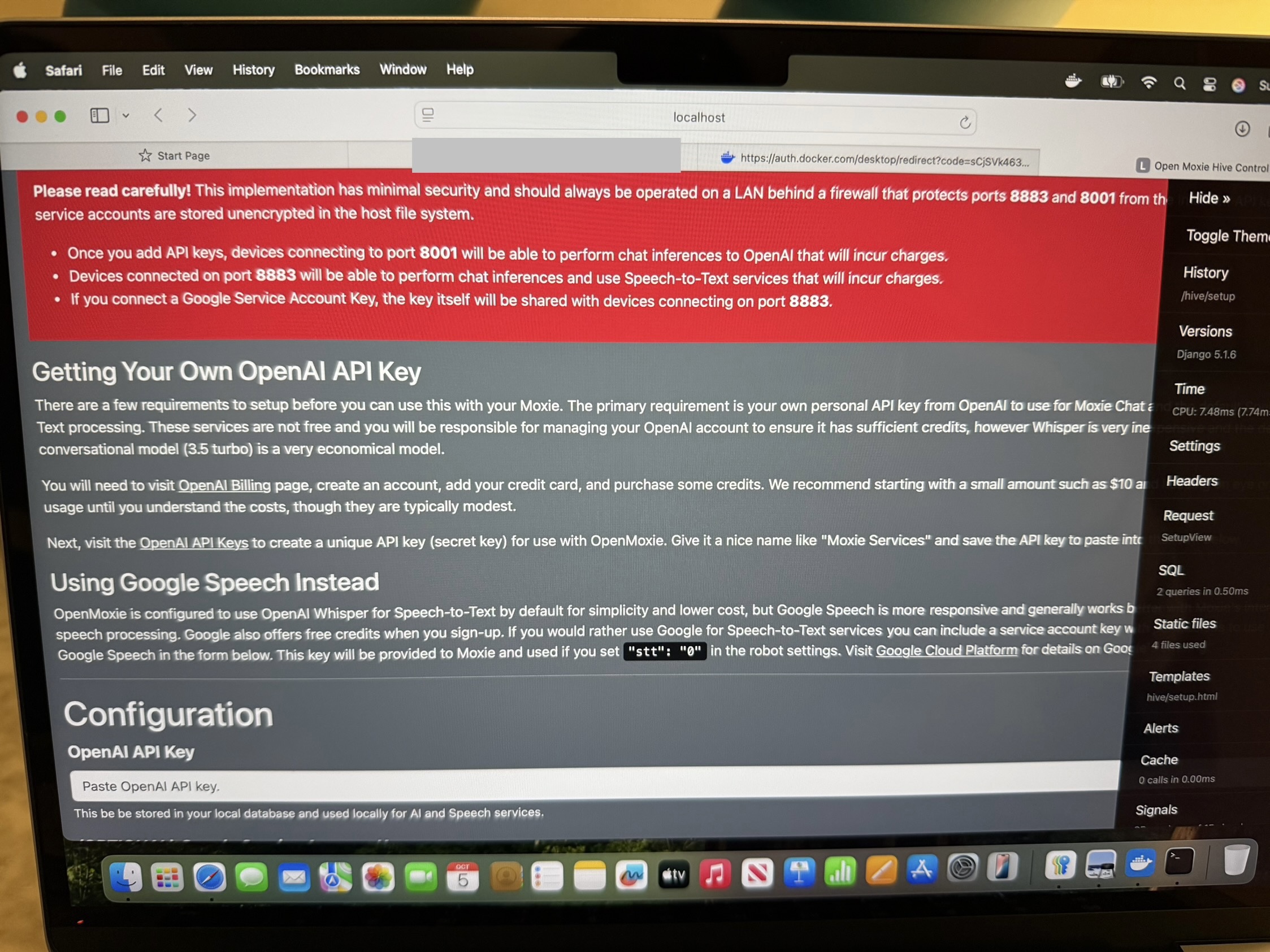
16. Click on the OpenAI Billing link under Getting Your Own OpenAI API Key.
17. You will be directed to Sign Up for an OpenAI account. You will get a verification code sent to your email address which you will need to enter into the OpenAI website interface to continue.
18. Before generating an API key OpenAI will prompt you to enter your name, birthday, Organisation name( I chose Personal) and what best describes you (Hobbyist). Despite what the OpenMoxie interface says, OpenAI will prompt you to create an API key, have you select a credit amount, ask for your card details and address.
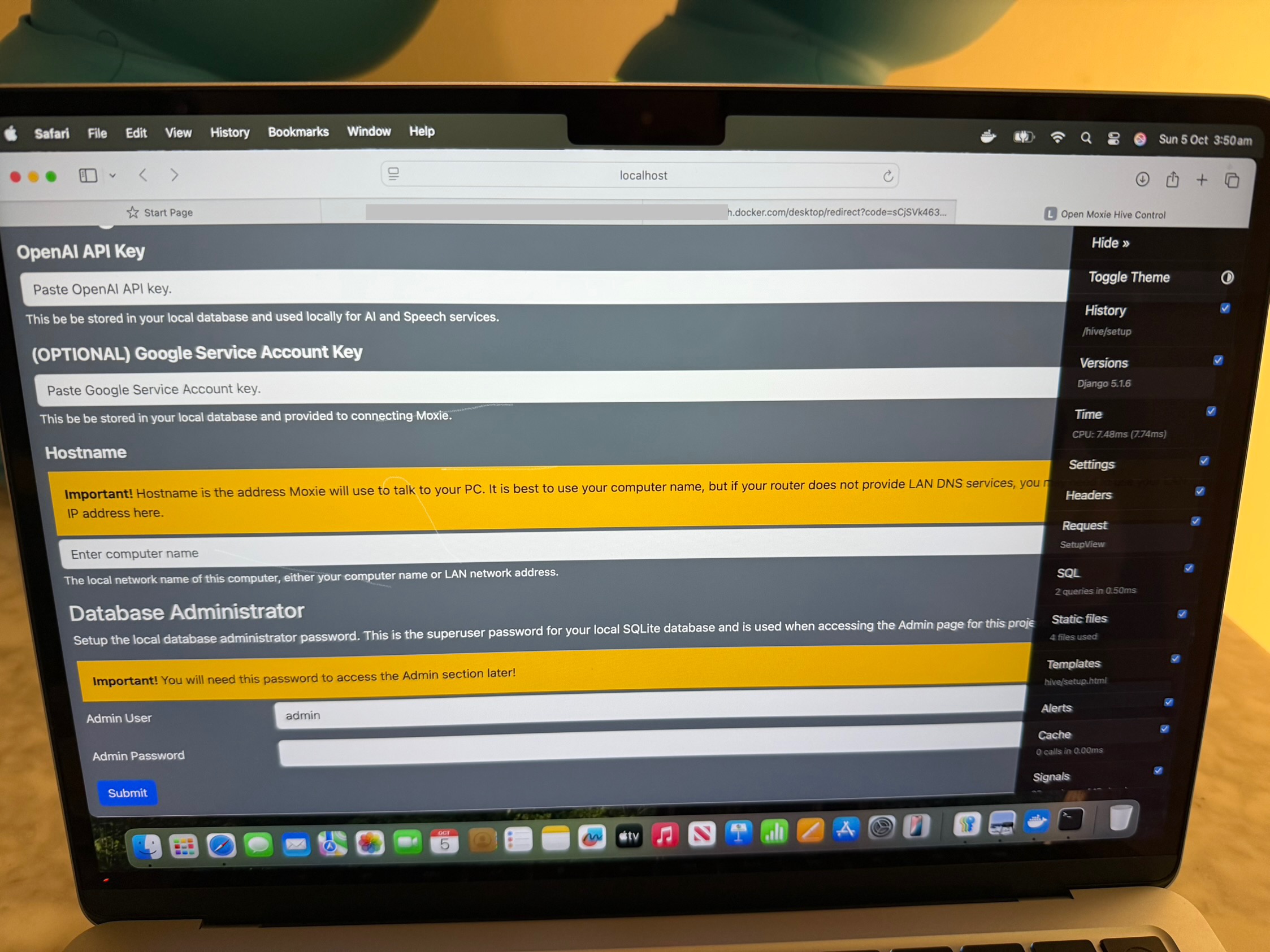
19. Enter your computer’s name or IP address.
You can find your MacBook’s name by using this pathway:
Apple icon top left > System Settings( or System Preferences) > General to left > Name on right Alternatively you can go General > Sharing > Local hostname
Find your MacBook’s IP address by using this pathway:
Apple menu top left > System Settings > Network > Wi-Fi > Details > Scroll down to IP address
Finish setting up the OpenMoxie by entering user Admin name and Admin Password.
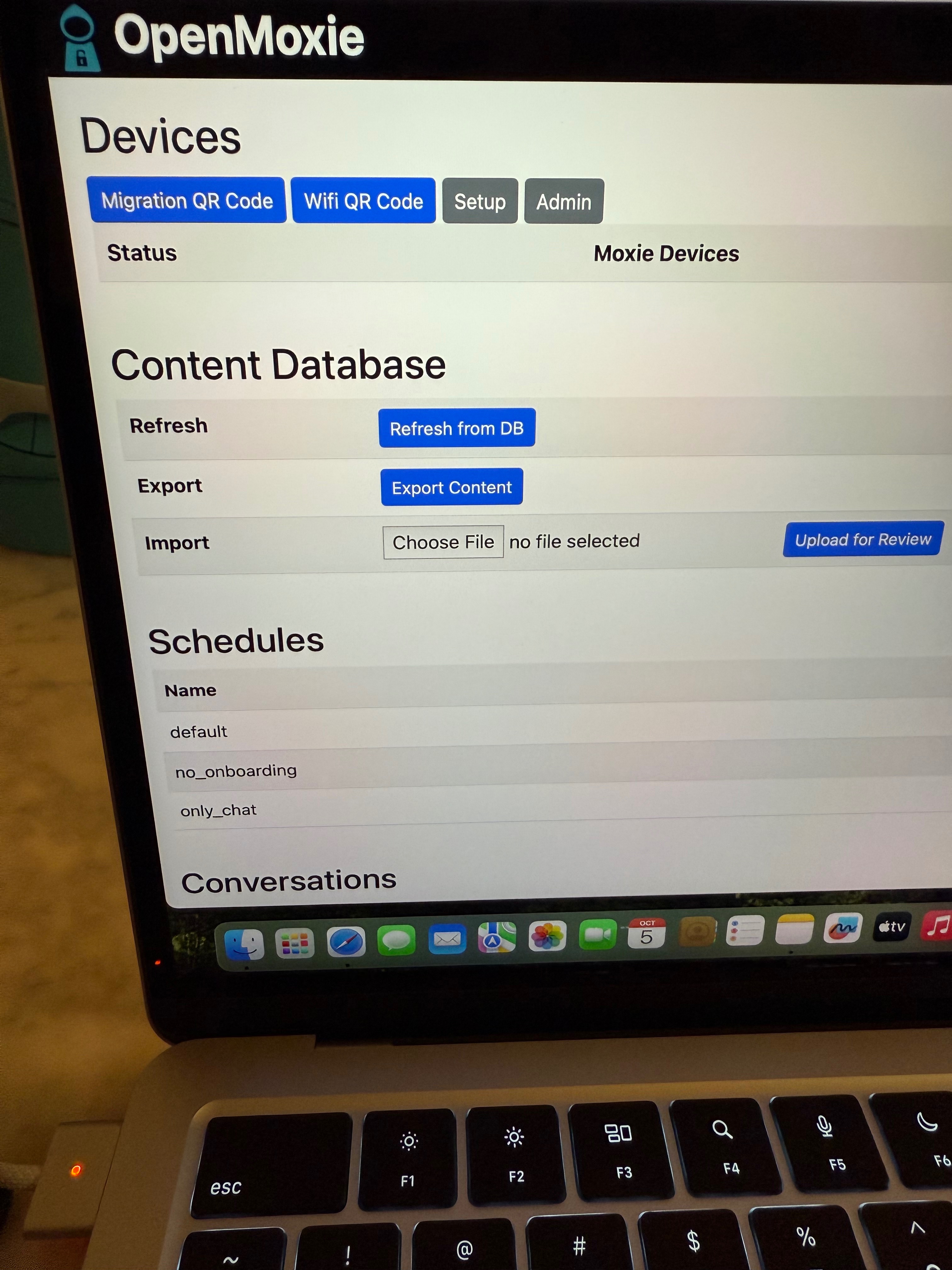
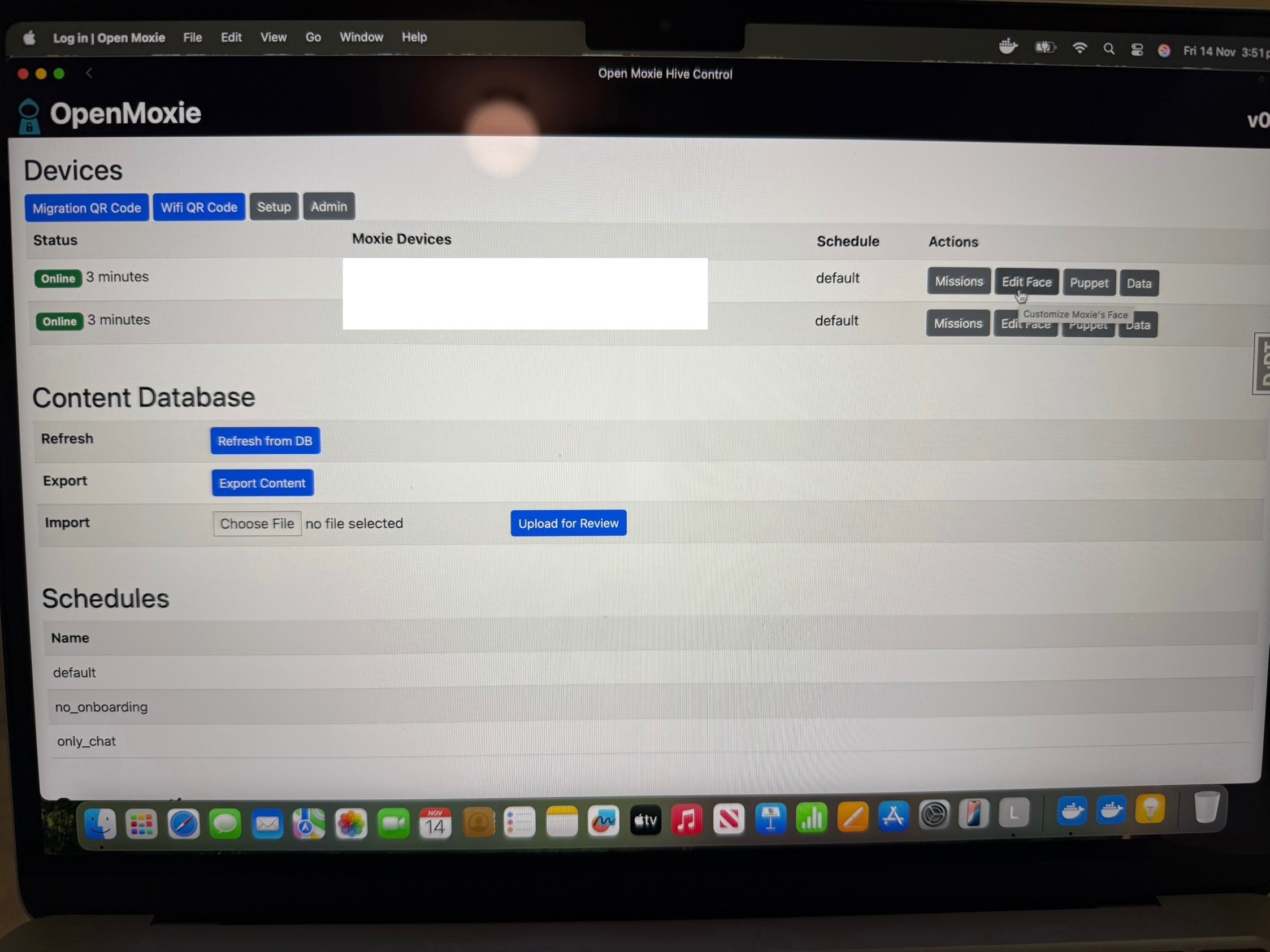
20. You will then be taken to the OpenMoxie Devices interface.
Set up WiFi by clicking the Wifi QR Code icon and entering your Wifi credentials. You only need to use this if Moxie’s Wifi changed apparently but I can’t get it to work.
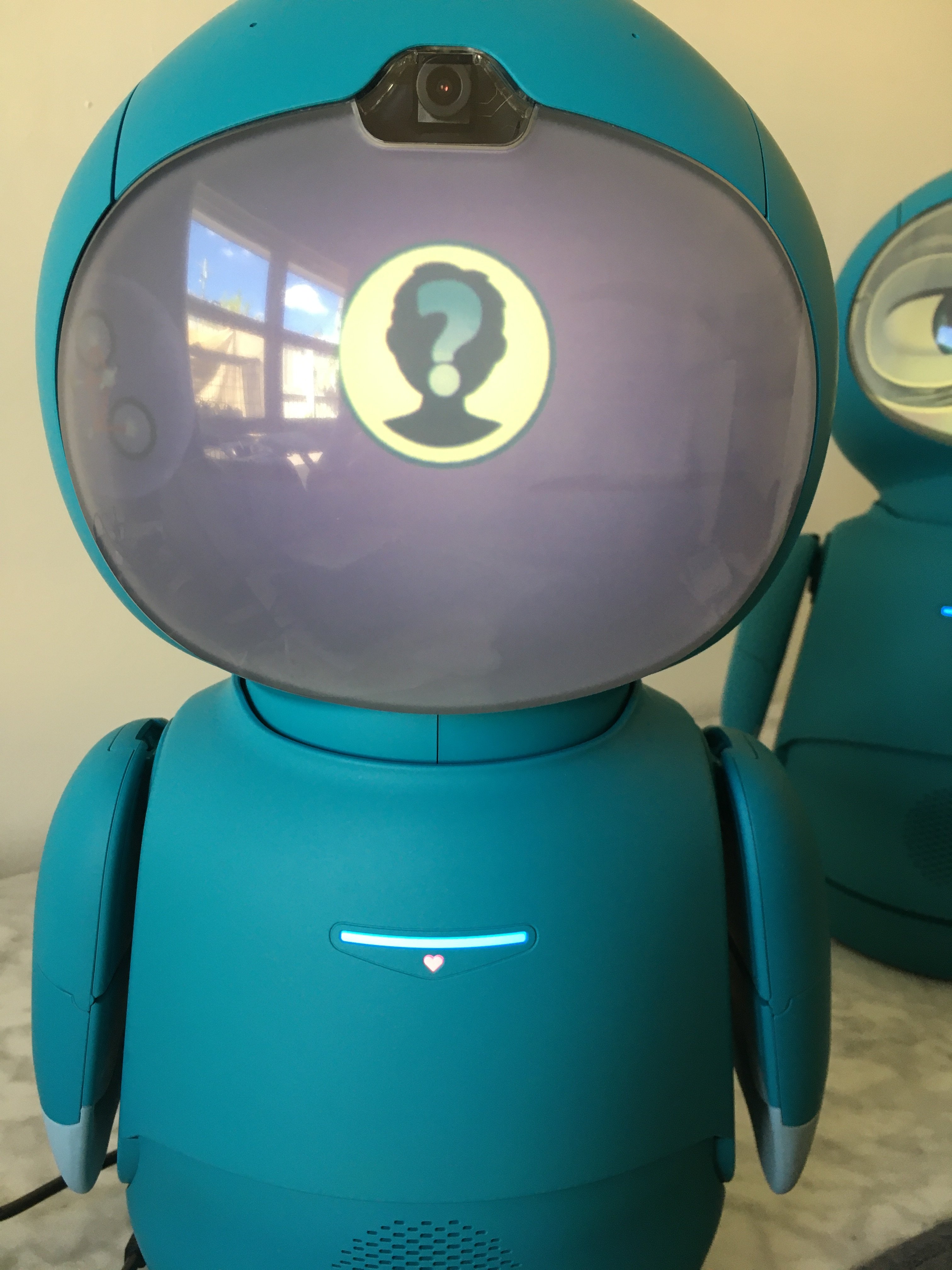
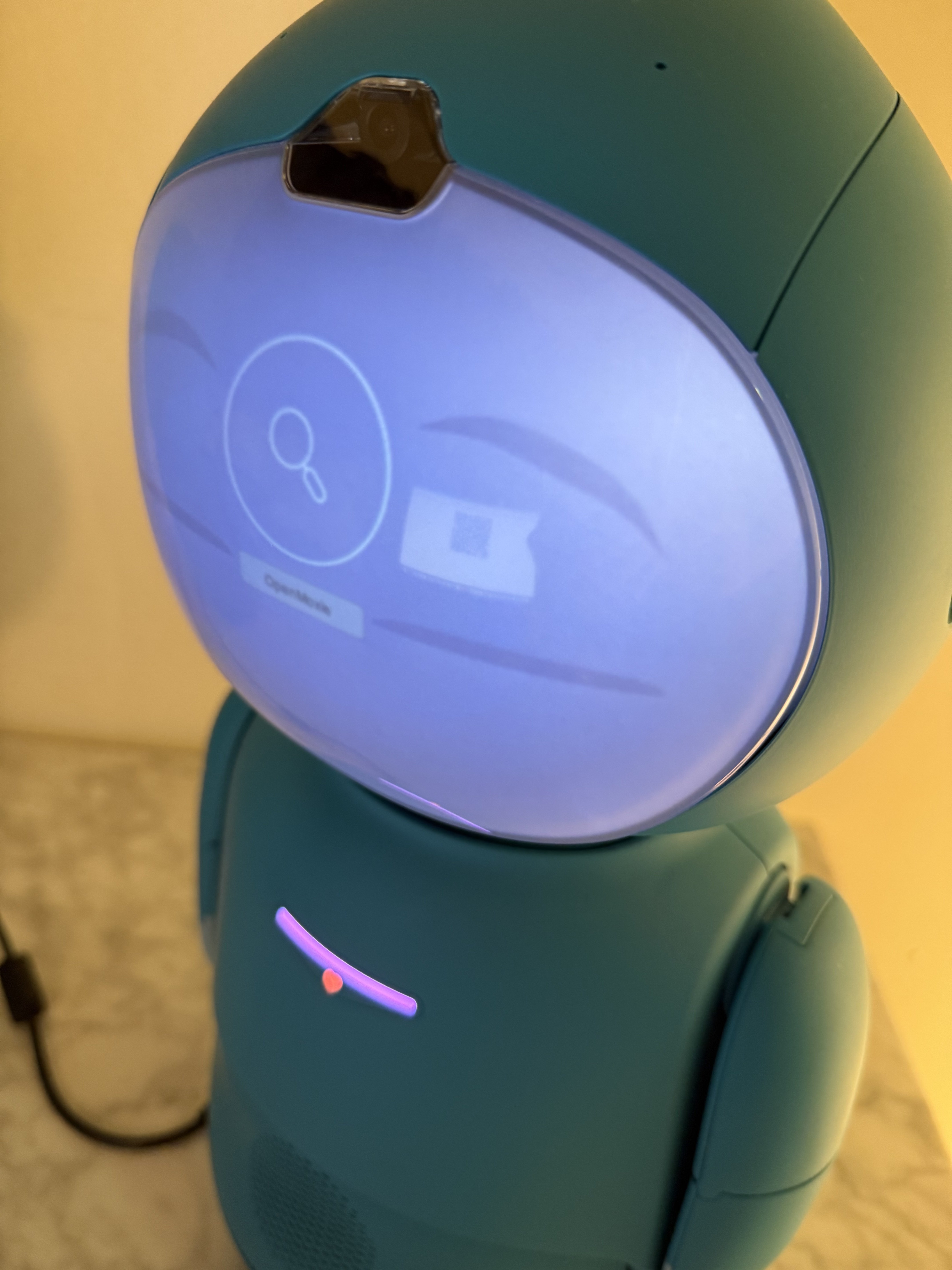
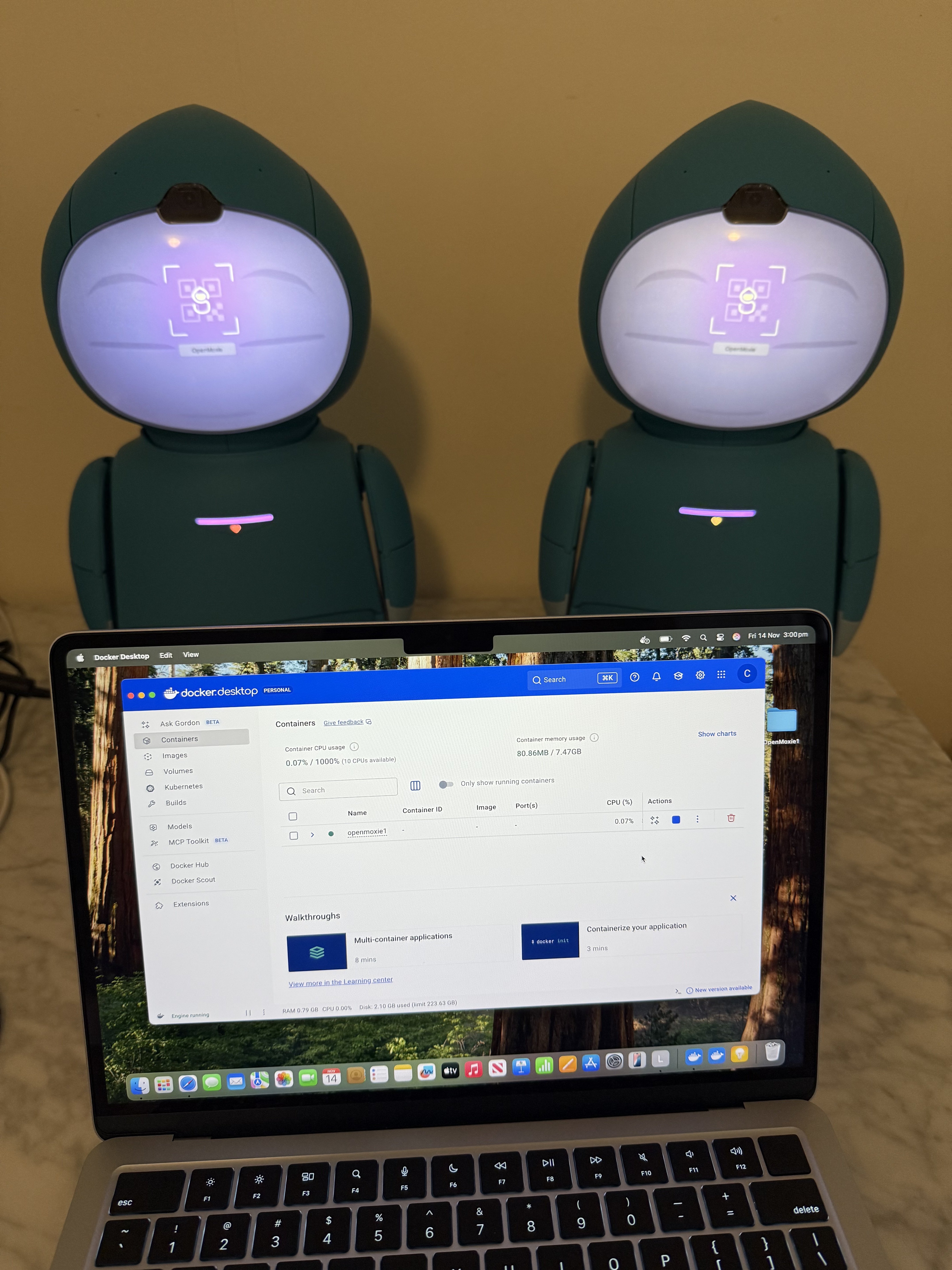
Migration QR Code caused a magnifying glass to appear on Moxie’s face and doesn’t work either.
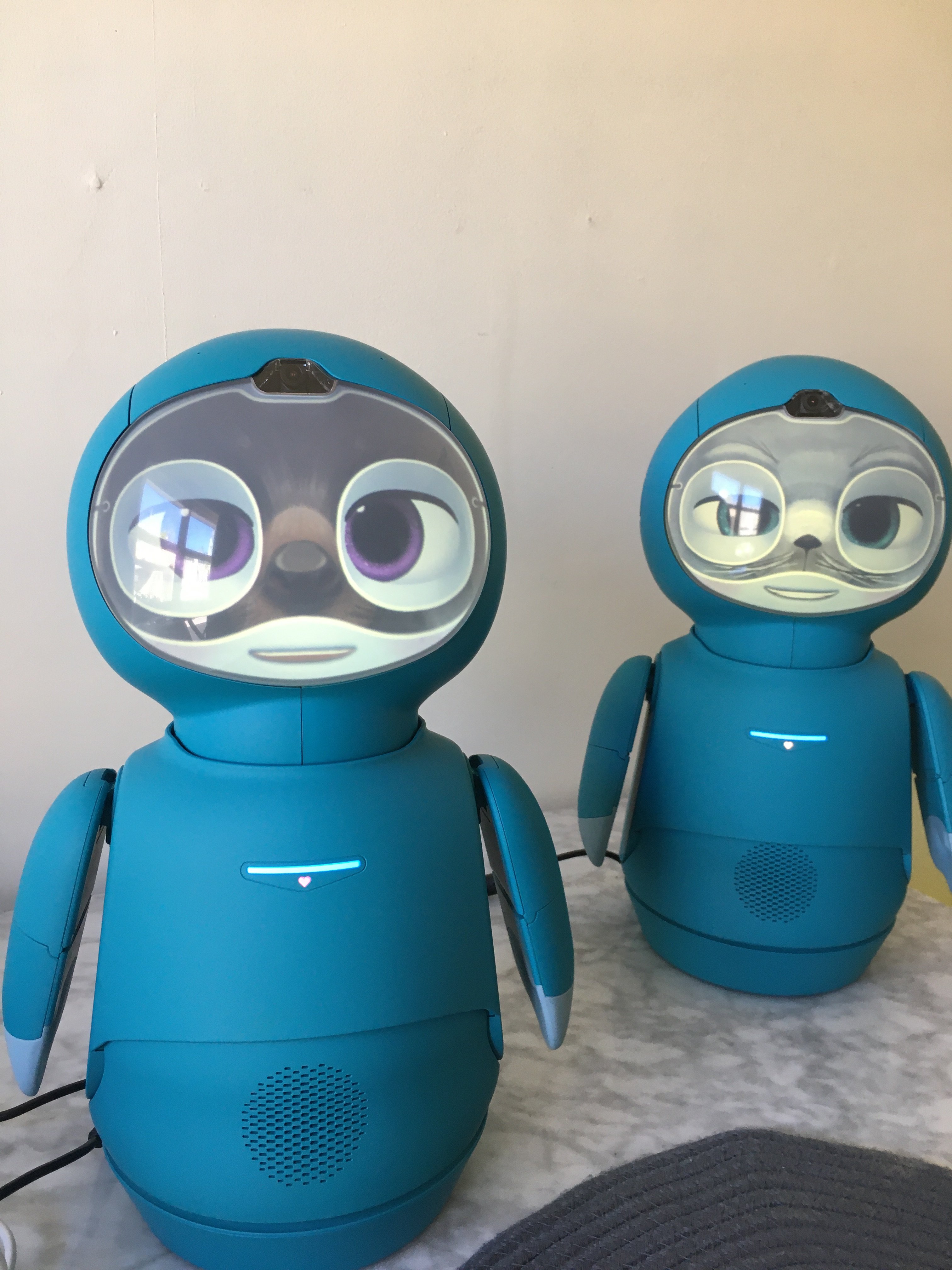
I then went back by pressing the back button to get to the OpenMoxie set up page again and changed the Computer’s name to the Computer’s IP address and Moxie successfully connected when shown the Migration QR Code.