Sanbot Nano (1 Viewer)

sanbotnano

RATH Rookie
Hi,

I am reaching out to all robotics companies, Sanbot Github Code hosts, and universities to see if anyone has the SDK and API for the Sanbot Nano, or if anyone's Sanbot Nano is still working properly with Amazon Alexa or via the Q-Link app.

I have recently received a brand new Sanbot Nano which I am using to program with primary school aged children, alongside Anki Vectors and various other drones. Our Vector robots work with Alexa, even though DDL servers have been down for over 12 months. But our Sanbot Nano doesn't work with Sanbot's inbuilt Alexa yet (but it has registered in our Amazon Account under Devices section), but I have installed an Alexa app via ADB which works when I open the app, but not when I close it and not from the Sanbot's home screen using their web-based Alexa sign up, (the sign up worked as it appears as a robot under my Alexa devices list on the Amazon website)20240805_222626.jpg.
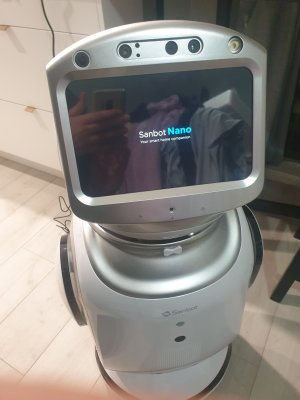
I have got various functions of the Sanbot Nano working, but I need the SDK and API to start programming, but sadly Sanbot / Qihan only have the SDK for Sanbot Elf available online and no longer provide any support for the Nano.

Do you have a copy of the Sanbot Nano SDK and/or API, or Firmware and do you have a Sanbot Nano still working with an active Alexa feature?

I currently have admin access to the robot under Marshmallow 6.0.1 and adb access too.

I would hate to think that the Sanbot Nano is now just e-waste.

Thanks,

Anton
 
Hi Anton,

I don’t have any experience with the Sanbot Nano robot but would be very interested to see what you end up getting it to do with some programming.

Perhaps you could try contacting the robot museum, they seem to be experts in all types of robots. I’ve added their links below. Hope you can find a solution.

All the best,
Chris


Hello to all I have started a group on facebook called
Keep Sanbot nano alive
Would like it if people could all get together to try and fix this problem we are all having

Or if any on can share instructions on how to get the firmware out of the nano

Thank you all
 
Good morning,

I have a lot of Sanbot Elf's and have got them working, I have created apps for them also.

I got the SDK from Sanbot (they still email back) and get them all unlocked

To view this content we will need your consent to set third party cookies.
For more detailed information, see our cookies page.

Shout if I can help
 
Updated January 2026:
- I'm having good success working to train ClaudeAI and ChatGPT to build Sanbot Nano apps. Once the formula is smoothed out over a few more apps I'll share the key learning and prompts you'll need.
- I'm close to getting the robot to talk back by using an alternative TTS (Text to Speech) engine. The robot hears you (and I've proven it) but the code running behind the robot's faces tells it to ignore your voice.

The below was updated in November 2025. Also check out my individual posts for important apps to use with the robot to use as a greeting robot.

My Sanbot Nano Progress/How To Improve Your Sanbot Nano Experience:
1. There is a USB port on the back of the Sanbot Nano's head behind the plastic rectangle. Undo the screw to access it.

Use the USB port on the Nano to connect to a laptop or PC (must be a data and power USB cable).

Then on the Nano, access settings, tap on Robot Version quickly seven times to enable Developer mode, which then allows the laptop to detect the Nano.

Then set up ADB on your PC/laptop by following the steps in this link:
 
Updated January 2026:
- I'm having good success working to train ClaudeAI and ChatGPT to build Sanbot Nano apps. Once the formula is smoothed out over a few more apps I'll share the key learning and prompts you'll need.
- I'm close to getting the robot to talk back by using an alternative TTS (Text to Speech) engine. The robot hears you (and I've proven it) but the code running behind the robot's faces tells it to ignore your voice.

The below was updated in November 2025. Also check out my individual posts for important apps to use with the robot to use as a greeting robot.

My Sanbot Nano Progress/How To Improve Your Sanbot Nano Experience:
1. There is a USB port on the back of the Sanbot Nano's head behind the plastic rectangle. Undo the screw to access it.

Use the USB port on the Nano to connect to a laptop or PC (must be a data and power USB cable).

Then on the Nano, access settings, tap on Robot Version quickly seven times to enable Developer mode, which then allows the laptop to detect the Nano.

Then set up ADB on your PC/laptop by following the steps in this link:

Then access Command Prompt via admin access (Right click on CMD from the Start Menu and choose Run as Administrator).

Check that the Nano is detected as an ADB / Android device (type adbdevices) don't use the brackets, which should list the Nano that is connected via USB.

Download apps/apks to match the robot's Android 6.0.1 Arembi v7 architecture from Apkmirror.

Then Push an app onto the Nano using the command (adb install -r -d theappname.apk) - don't use brackets. Google Chrome for Android 6 can be downloaded from here https://www.apkmirror.com/apk/google-inc/chrome/variant-{"minapi_slug":"minapi-23"}/

You should also install ES File Explorer https://apkpure.com/search?q=ES+File+Explorer&t=app
onto the Nano for Android 6 which then allows you to install APKs via a USB stick, instead of needing the Nano to be connected to a laptop via a USB cord. All apps/installed apks then appear under the AppMarket app --> on the Nano.
 

Then access Command Prompt via admin access (Right click on CMD from the Start Menu and choose Run as Administrator).

Check that the Nano is detected as an ADB / Android device (type adbdevices) don't use the brackets, which should list the Nano that is connected via USB.

Download apps/apks to match the robot's Android 6.0.1 Arembi v7 architecture from Apkmirror.

Then Push an app onto the Nano using the command (adb install -r -d theappname.apk) - don't use brackets. Google Chrome for Android 6 can be downloaded from here https://www.apkmirror.com/apk/google-inc/chrome/variant-{"minapi_slug":"minapi-23"}/

You should also install ES File Explorer https://apkpure.com/search?q=ES+File+Explorer&t=app
onto the Nano for Android 6 which then allows you to install APKs via a USB stick, instead of needing the Nano to be connected to a laptop via a USB cord. All apps/installed apks then appear under the AppMarket app --> on the Nano.
2. If you are curious, install a device info.apk such as https://www.apkmirror.com/apk/yasir...-system-cpu-info-3-3-5-0-android-apk-download to get all the Nano's device info, which should reveal that the Nano is armeabi-v7a architecture and Android 6.0.1. knowing these two pieces of info will enable you to then to be able to find and successfully install the correct APKS (apps) via websites such as apkgold or apkpure

3. As the Google Play store does not work, search for, download and install F-Droid's Aurora Store https://f-droid.org/en/packages/com.aurora.store/ to then access online app stores. This will enable you to then download and install apps/apks without needing a PC/Laptop or USB stick. Some apps from the Aurora Store require Google Services Framework to work. You search for GSF (Google Services Framework) in the Aurora Store.
 
2. If you are curious, install a device info.apk such as https://www.apkmirror.com/apk/yasir...-system-cpu-info-3-3-5-0-android-apk-download to get all the Nano's device info, which should reveal that the Nano is armeabi-v7a architecture and Android 6.0.1. knowing these two pieces of info will enable you to then to be able to find and successfully install the correct APKS (apps) via websites such as apkgold or apkpure

3. As the Google Play store does not work, search for, download and install F-Droid's Aurora Store https://f-droid.org/en/packages/com.aurora.store/ to then access online app stores. This will enable you to then download and install apps/apks without needing a PC/Laptop or USB stick. Some apps from the Aurora Store require Google Services Framework to work. You search for GSF (Google Services Framework) in the Aurora Store.
 
Some device admin apps will also enable you to disable the Nano's Alexa app to stop the Alexa needs to connect message to stop popping up. sometimes when I restart/turn off the Nano, it launches back in the original Launcher3, sometimes it launches into NovaLauncher. I am trying to install an app so I can select restart, rather than turn Nano on and off the via switch.

Amazon Alexa
6a. When you try to connect Sanbot Nano to Alexa, the website/link never loads - this is due to the fact that the inbuilt browser app is very old. So, after installing the latest version of Chrome (see step 1 above) or Firefox, then setting with browsers as the default browser, then registration link opens, but when trying to connect to Alexa, it will give you the choice to open the registration link in the other browsers. Alexa / Amazon connection will then login, and appear to connect, and then fail at the last minute. However, if you use a laptop to log into your Amazon account,
 
Some device admin apps will also enable you to disable the Nano's Alexa app to stop the Alexa needs to connect message to stop popping up. sometimes when I restart/turn off the Nano, it launches back in the original Launcher3, sometimes it launches into Nova Launcher. I am trying to install an app so I can select restart, rather than turn Nano on and off the via switch.

Amazon Alexa
6a. When you try to connect Sanbot Nano to Alexa, the website/link never loads - this is due to the fact that the inbuilt browser app is very old. So, after installing the latest version of Chrome (see step 1 above) or Firefox, then setting with browsers as the default browser, then registration link opens, but when trying to connect to Alexa, it will give you the choice to open the registration link in the other browsers. Alexa / Amazon connection will then login, and appear to connect, and then fail at the last minute. However, if you use a laptop to log into your Amazon account,
the Sanbot Nano will be listed under My Devices with the Nano's serial number. So success part 1 achieved!

6b. Sadly, the inbuilt Alexa app for Nano stopped working in March 2023 because Amazon disabled Alexa Hands Free:" "We regularly review our features to ensure we're investing in services that delight our customers. We have decided to end support for Alexa phone-wide hands-free calling on Android smartphone devices by the end of March 2023. We recognize that this news may be disappointing for some customers, but we will continue to invest in the Alexa Experience within the Alexa app to provide our customers with seamless access to the features and experiences they love." That is what I suspect to be the smoking gun that explains why Sanbot dropped all customer service for the Nano and say that Alexa will "never work"...

6c. The latest Alexa app 2.2.462157.0 for armeabi-v7a and android 6.0.1 can then be installed.
 
the Sanbot Nano will be listed under My Devices with the Nano's serial number. So success part 1 achieved!

6b. Sadly, the inbuilt Alexa app for Nano stopped working in March 2023 because Amazon disabled Alexa Hands Free:" "We regularly review our features to ensure we're investing in services that delight our customers. We have decided to end support for Alexa phone-wide hands-free calling on Android smartphone devices by the end of March 2023. We recognize that this news may be disappointing for some customers, but we will continue to invest in the Alexa Experience within the Alexa app to provide our customers with seamless access to the features and experiences they love." That is what I suspect to be the smoking gun that explains why Sanbot dropped all customer service for the Nano and say that Alexa will "never work"...

6c. The latest Alexa app 2.2.462157.0 for armeabi-v7a and android 6.0.1 can then be installed.
It will enable voice commands, but only when the app is open/has focus. I did have it successfully run in the background once, but it then clashed with the Nano's inbuilt Alexa app - so I disabled the inbuilt Alexa app. I am currently trying to either use an admin app delete the inbuilt Alexa app (to then only install the new Alexa version so that the two Alexa apps don't clash) or find an app that will allow two apps to run (e.g. split-screen mode) like when you use Android auto in a car, via Fermata Auto, which could enable Alexa to run on one side of the screen, and the cat/boy/girl face or Android Voice Access on the other.

Inside any Alexa app, you can ask for it to play iHeartRadio, Therefore I got iHeartRadio working, so linking and then using Alexa voice commands to play iHeartRadio works.

Other hands-free / voice control apps?

7a. Google Assist: I have installed v 0.1.6019224805 - But somewhere in the app under "Hey Google and Voice Match"
 
It will enable voice commands, but only when the app is open/has focus. I did have it successfully run in the background once, but it then clashed with the Nano's inbuilt Alexa app - so I disabled the inbuilt Alexa app. I am currently trying to either use an admin app delete the inbuilt Alexa app (to then only install the new Alexa version so that the two Alexa apps don't clash) or find an app that will allow two apps to run (e.g. split-screen mode) like when you use Android auto in a car, via Fermata Auto, which could enable Alexa to run on one side of the screen, and the cat/boy/girl face or Android Voice Access on the other.

Inside any Alexa app, you can ask for it to play iHeartRadio, Therefore I got iHeartRadio working, so linking and then using Alexa voice commands to play iHeartRadio works.

Other hands-free / voice control apps?

7a. Google Assist: I have installed v 0.1.6019224805 - But somewhere in the app under "Hey Google and Voice Match"
device it says this feature is currently unavailable on this device. Research shows Google Assist is available for 6.0.1... so more exploration / troubleshooting of Google Assist may apply to solve this.

7b. Google Voice Access: I installed v4.0.304676510 which enables me to say 1, 2 or 3, to open the apps marked with a 1, 2 or 3. I'm still exploring all the commands to see what is possible, so we could explore this app too (see https://www.boia.org/blog/android-voice-access-an-overview)

I have posted some Android 6 base level apps extracted from an Android 6 tablet. Installing these has had some benefit to getting towards Google Search to work as inside Google Search the Discovery window normally does not work due to a Google Play Services issue. If you install these apps from the link below, Google Play Services seems to get fixed which allows Discovery to load and show you need from Google inside the home screen of the Google Search app:
 
device it says this feature is currently unavailable on this device. Research shows Google Assist is available for 6.0.1... so more exploration / troubleshooting of Google Assist may apply to solve this.

7b. Google Voice Access: I installed v4.0.304676510 which enables me to say 1, 2 or 3, to open the apps marked with a 1, 2 or 3. I'm still exploring all the commands to see what is possible, so we could explore this app too (see https://www.boia.org/blog/android-voice-access-an-overview)

I have posted some Android 6 base level apps extracted from an Android 6 tablet. Installing these has had some benefit to getting towards Google Search to work as inside Google Search the Discovery window normally does not work due to a Google Play Services issue. If you install these apps from the link below, Google Play Services seems to get fixed which allows Discovery to load and show you need from Google inside the home screen of the Google Search app:

8. Voice Typing inside internet browsers:

The best app to use is Microsoft SwiftKey, which still uses Google's voice search services to work:


Sometimes GBoard works to replace keyboard typing with voice typing instead: https://androidapks.com/gboard/com-...in/download-old/gboard-14-1-04-621126403-apk/

GBoard is a great tool for use with internet browsers. The voice instructions will be checked using Google's voice recognition, giving the correct spelling for most internet searches.

3D Camera / Somatic / Interactive Apps (Similar to the Xbox Kinect):

9. Both the Sanbot Nano and the ELF robots are equipped with three cameras; a security-grade HD surveillance camera, a flat-panel camera, and an Orbbec 3D camera.
 

8. Voice Typing inside internet browsers:

The best app to use is Microsoft SwiftKey, which still uses Google's voice search services to work:


Sometimes GBoard works to replace keyboard typing with voice typing instead: https://androidapks.com/gboard/com-...in/download-old/gboard-14-1-04-621126403-apk/

GBoard is a great tool for use with internet browsers. The voice instructions will be checked using Google's voice recognition, giving the correct spelling for most internet searches.

3D Camera / Somatic / Interactive Apps (Similar to the Xbox Kinect):

9. Both the Sanbot Nano and the ELF robots are equipped with three cameras; a security-grade HD surveillance camera, a flat-panel camera, and an Orbbec 3D camera.
Among them, the Orbbec camera is only used for playing motion-sensing games.

I have found out that the Sanbot's 3D camera (in it's forehead) is an Orbbec Astra.
- An Orbecc Persee (I just happened to have one from a few years ago) is a camera plus a mini computer in one unit
- An Orbbec Astra is just the camera.

I'm not sure which model of Astra was used in the Sanbot as there are four; Astra, Astra +, Astra Pro or Astra 2. Qihan has said that they are unsure of the type of Orbbec camera, but has confirmed the Elf and Nano both have the same Orbbec camera installed. I have reached out to Orbbec for further clarification.

Qihan told me via email that Orbbec refused to open it up for them to develop apps for and did not provided them with the SDK for this camera, so they could develop apps using the Orbbec camera on the robot.

All pre-installed Orbbec 3D camera apps on the Sanbot Nano and Elf seem to crash, with the apps
 
Among them, the Orbbec camera is only used for playing motion-sensing games.

I have found out that the Sanbot's 3D camera (in it's forehead) is an Orbbec Astra.
- An Orbecc Persee (I just happened to have one from a few years ago) is a camera plus a mini computer in one unit
- An Orbbec Astra is just the camera.

I'm not sure which model of Astra was used in the Sanbot as there are four; Astra, Astra +, Astra Pro or Astra 2. Qihan has said that they are unsure of the type of Orbbec camera, but has confirmed the Elf and Nano both have the same Orbbec camera installed. I have reached out to Orbbec for further clarification.

Qihan told me via email that Orbbec refused to open it up for them to develop apps for and did not provided them with the SDK for this camera, so they could develop apps using the Orbbec camera on the robot.

All pre-installed Orbbec 3D camera apps on the Sanbot Nano and Elf seem to crash, with the apps
returning an SDK error. I have tried to install other Orbbec apps, as I had some for an Orbbec Persee I had, but they have not worked except for Nuitack (see below).

PARTLY SOLVED: Qihan was only given a limited license for the Orbbec apps to work. So if you set the robot's date to 2017 or 2016, some Orbbec apps will work as technically the system is not telling the correct date to the expired license. WARNING: Make sure that you change the date back as internet apps generally need the correct date and time to work on any system.

10. Nuitrack can be installed. I have previously installed it for an Orbecc Persee, and so I got it working on the Nano.

11. The inbuilt Safety Home Patrol/Guard dog app for the Nano works, allowing Sanbot to patrol an area, and record photos/videos of people who enter his set up boundaries

12. Thanks to Igor Lirussi - igor.lirussi@studio.unibo.it, I have installed his app called Capabot v6 from
 
returning an SDK error. I have tried to install other Orbbec apps, as I had some for an Orbbec Persee I had, but they have not worked except for Nuitack (see below).

PARTLY SOLVED: Qihan was only given a limited license for the Orbbec apps to work. So if you set the robot's date to 2017 or 2016, some Orbbec apps will work as technically the system is not telling the correct date to the expired license. WARNING: Make sure that you change the date back as internet apps generally need the correct date and time to work on any system.

10. Nuitrack can be installed. I have previously installed it for an Orbecc Persee, and so I got it working on the Nano.

11. The inbuilt Safety Home Patrol/Guard dog app for the Nano works, allowing Sanbot to patrol an area, and record photos/videos of people who enter his set up boundaries

12. Thanks to Igor Lirussi - igor.lirussi@studio.unibo.it, I have installed his app called Capabot v6 from
https://github.com/igor-lirussi/CapaBot-SanBot-Robot/releases, which was designed for the Sanbot Elf.

It allows you to test the capabilities of the Nano, as well as to press the buttons in the app (version 4 of Capabot only used voice commands of your robot was connected to Qihan's servers, so the buttons could not be pressed).

It can also be used to patrol an area, show the 3D camera footage, and make a sound when motion is detected. Capabot also has a second app section called Start Interaction. It is meant to work via a) Voice and b) Touch / buttons on the screen (see this video: https://drive.google.com/file/d/1-12KoFGYx4bOIIMnO2PQt7WUAegum1sE/view). V6 of Capabot solves the touch buttons not working as shown in the video of me using the v4 app.

Admin /Root access?

13a: I am slowly exploring Android Studio to try to test/debug a test apk I found of the Q-Link app, with the hope to see if I can modify some code,
 
Back
Top Bottom